INTERFACE TOURExplore every workspace before you open the app.
A visual tour of what appears on each screen, what information it shows and what actions are available there.
WHAT THIS PAGE SHOWSInside the App explains the interface. For benefits and results, visit Features. For the order of work, visit Workflow.
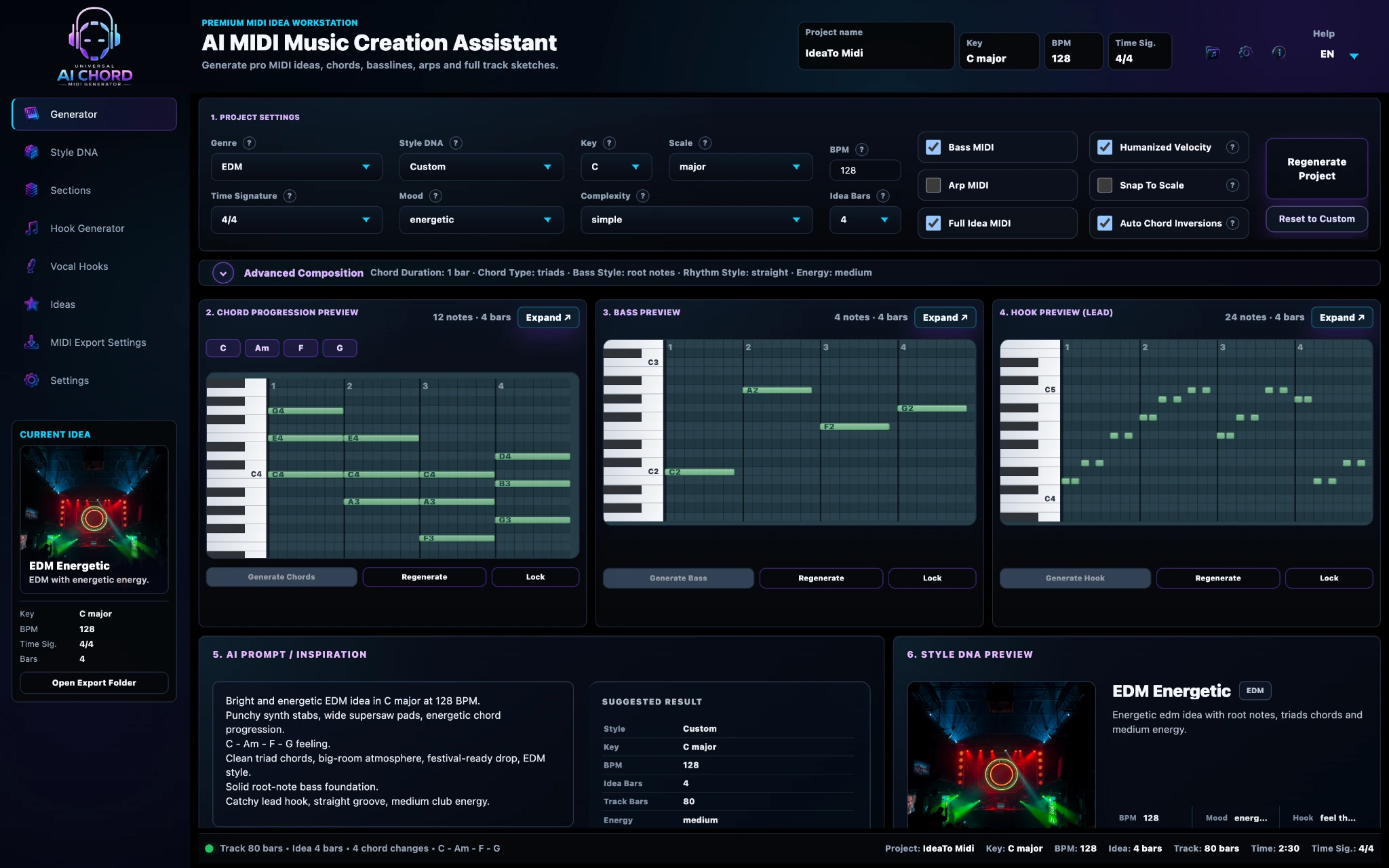
01 · GENERATORGenerator
What you seeProject Settings, Advanced Composition, three professional Piano Roll previews, AI Prompt and Style DNA Preview.
What you can doSet the musical direction, generate chords, bass and hook events, inspect the notes and regenerate selected layers.
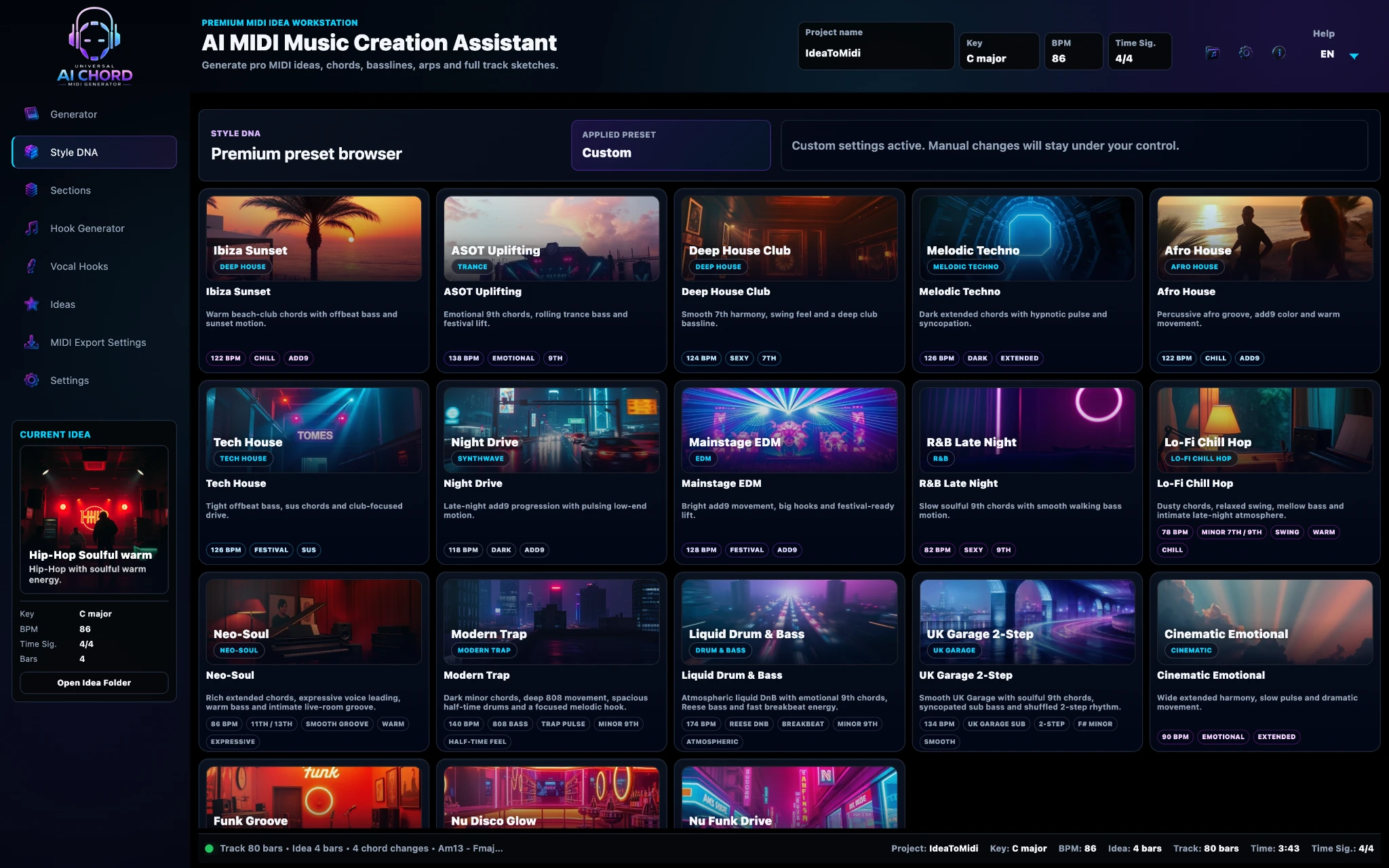
02 · STYLE DNAStyle DNA
What you seeA visual preset browser with active style, genre tags, BPM, mood and harmonic character.
What you can doChoose or apply a musical identity that updates the project’s creative settings.
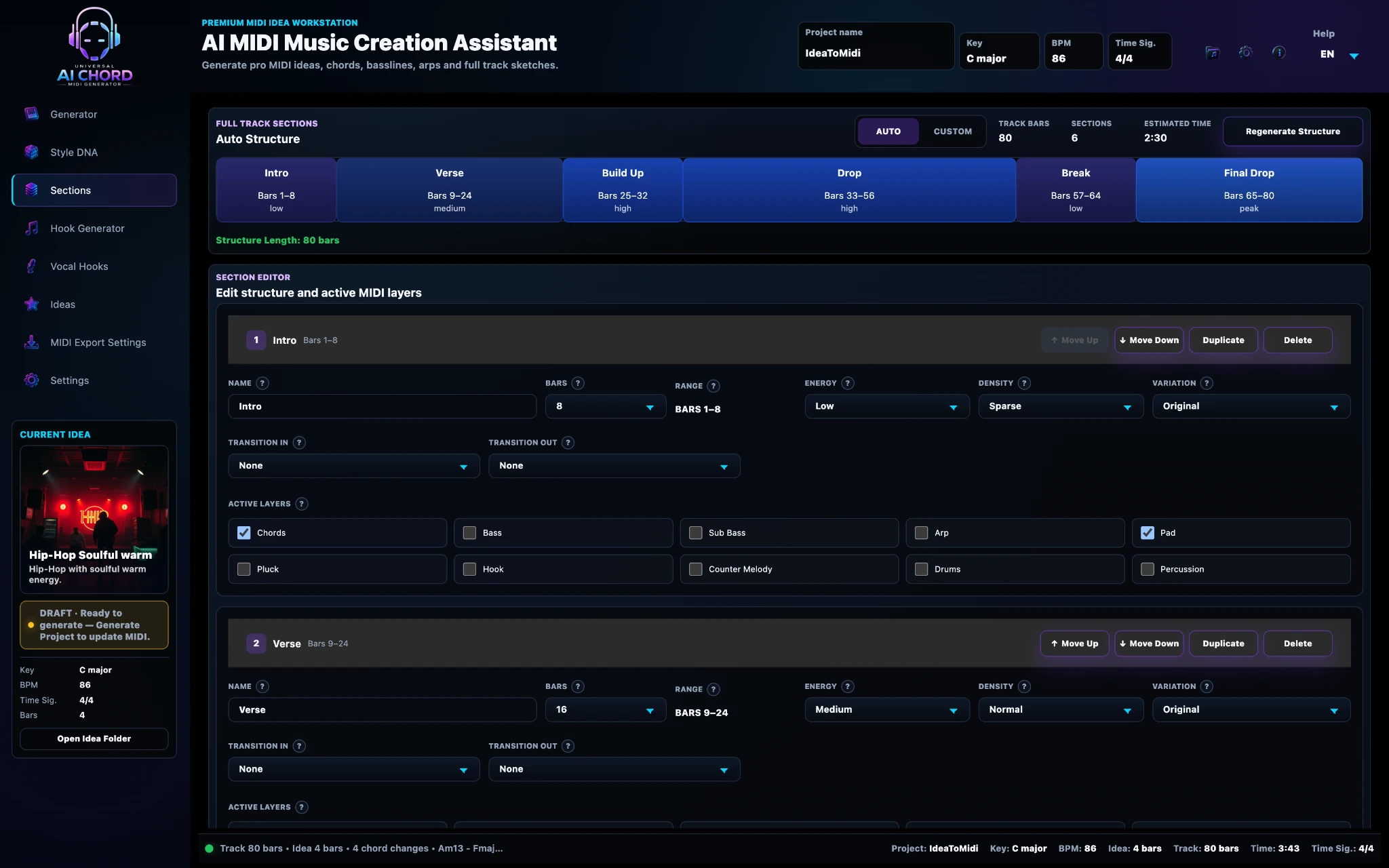
03 · SECTIONSSections
What you seeThe full track timeline, section editor, bar ranges, energy, density, transitions and active MIDI layers.
What you can doCreate or edit the arrangement structure and control what happens in every part of the track.
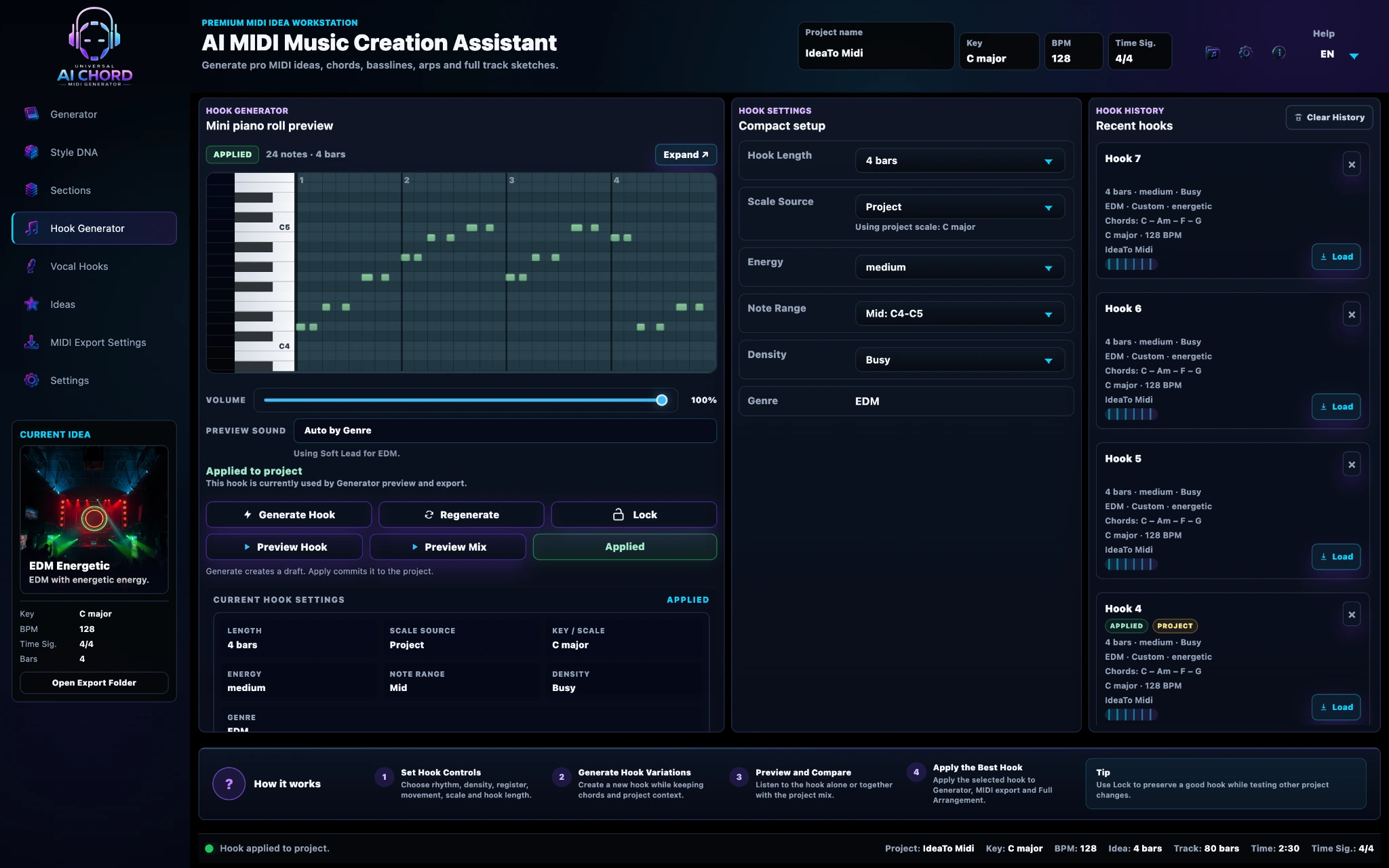
04 · HOOK GENERATORHook Generator
What you seeA compact Piano Roll, hook controls, preview buttons, current settings and Recent Hooks history.
What you can doGenerate variations, preview them alone or in the mix, lock strong ideas and apply the selected hook.
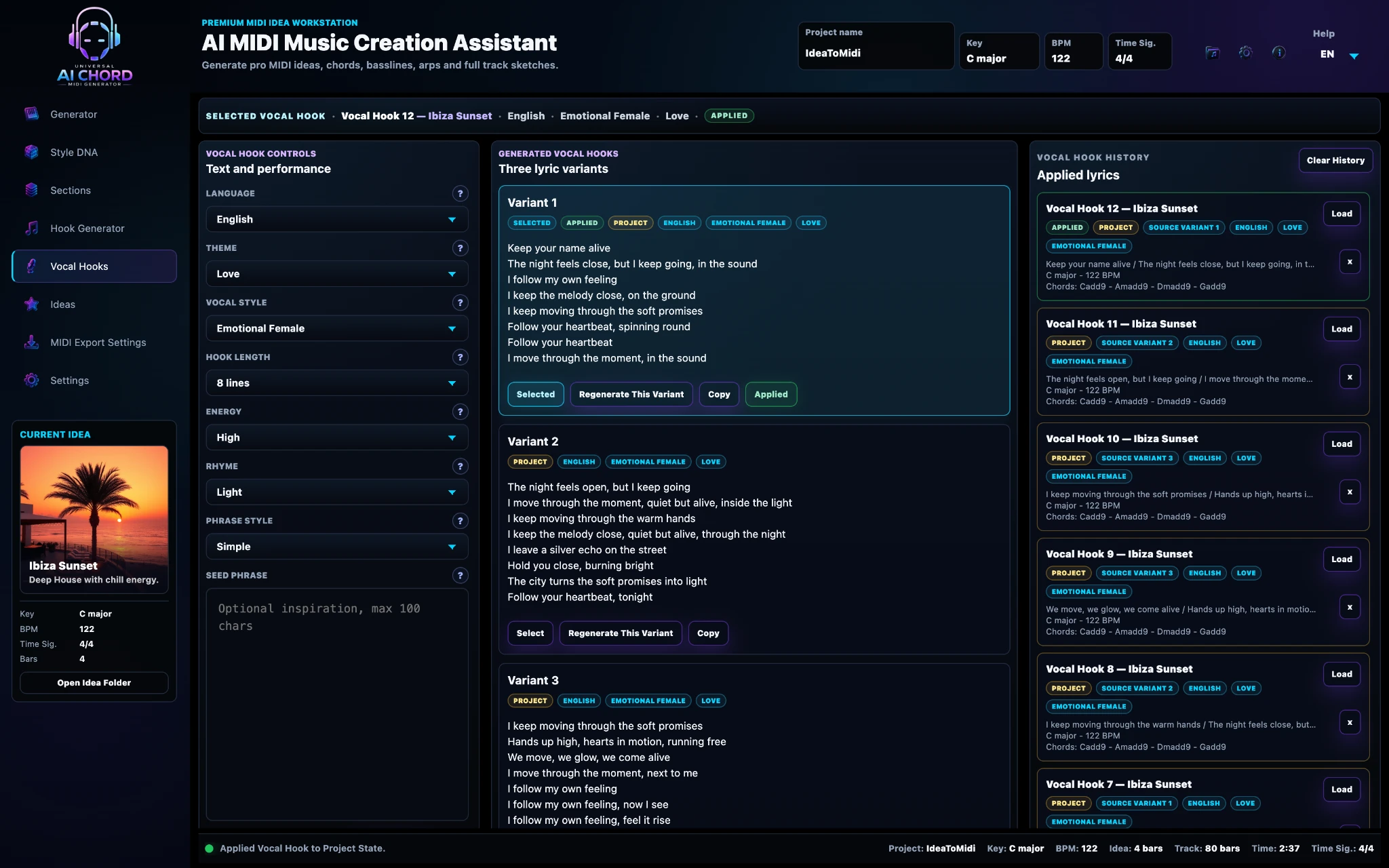
05 · VOCAL HOOKSVocal Hooks
What you seeLanguage, theme, vocal style, phrase controls, three generated variants and applied-lyrics history.
What you can doDevelop short lyrical directions, compare variants and apply the phrase that best matches the project.
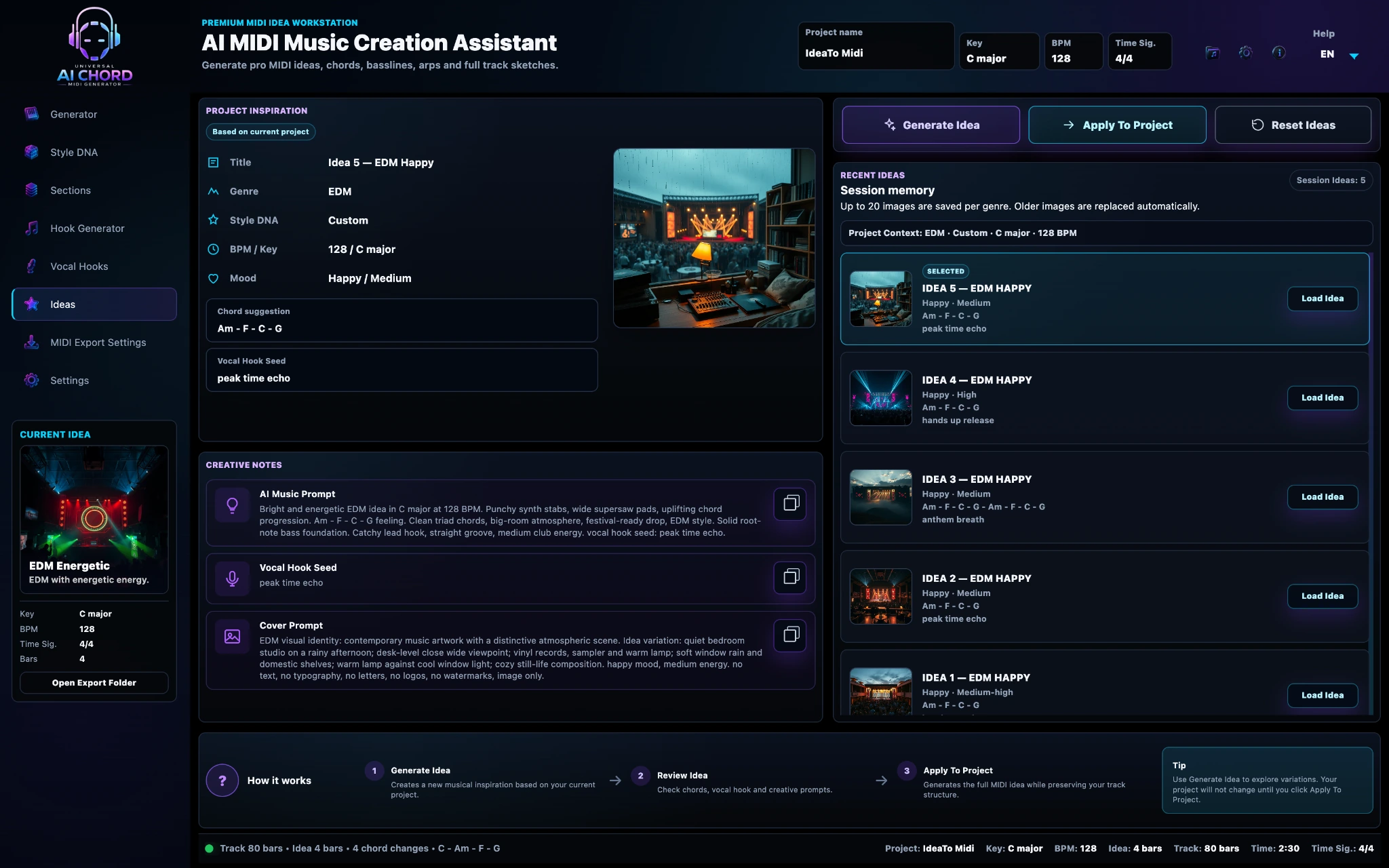
06 · IDEASIdeas
What you seeProject Inspiration, creative notes, cover prompt and a session history of alternate musical directions.
What you can doGenerate, compare, load and apply idea variations without losing the current project.
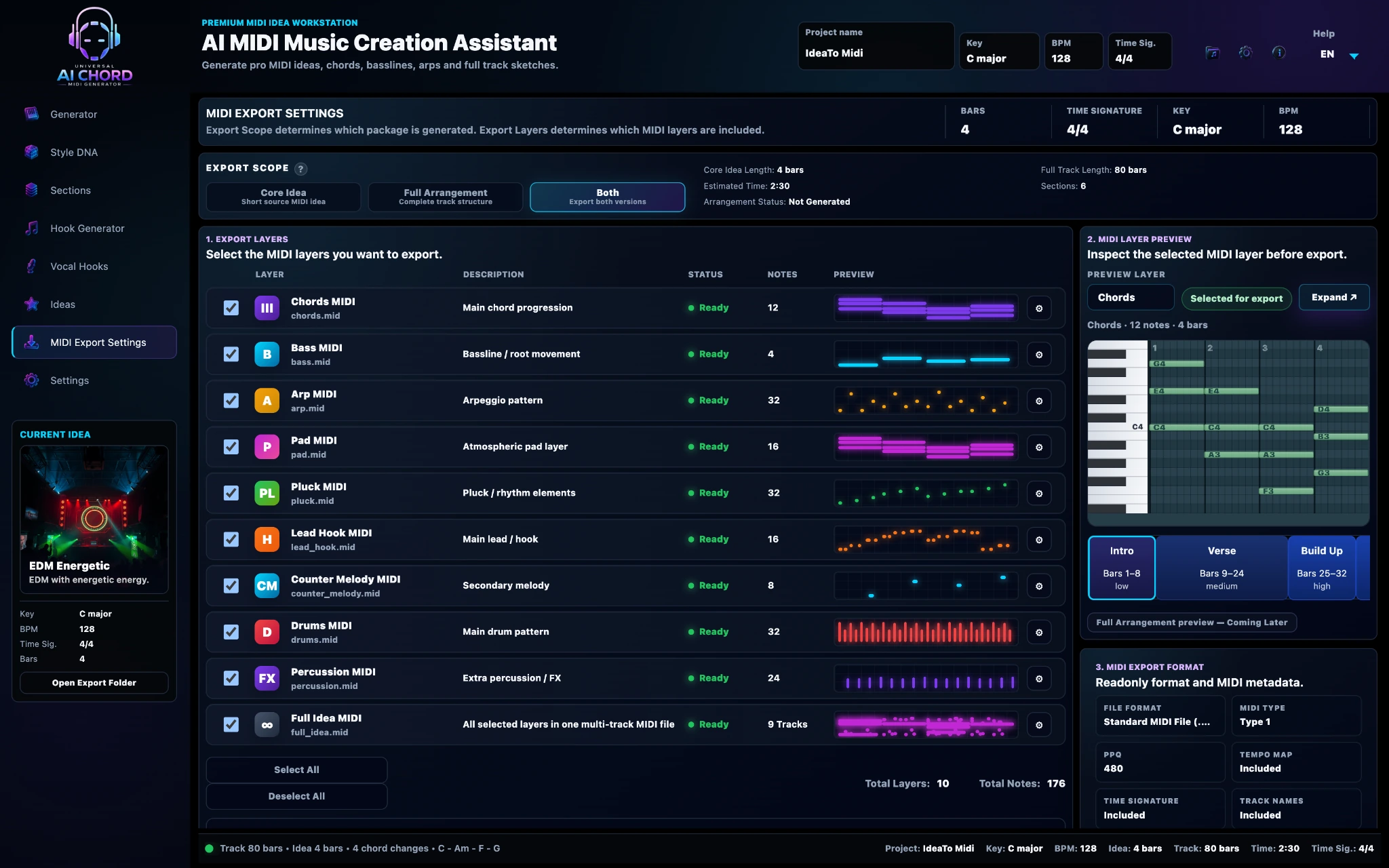
07 · MIDI EXPORTMIDI Export Settings
What you seeExport Scope, selectable MIDI layers, selected-layer preview, file format and MIDI metadata.
What you can doChoose exactly what to export, inspect a layer before export and create a Core Idea, Full Arrangement or both.
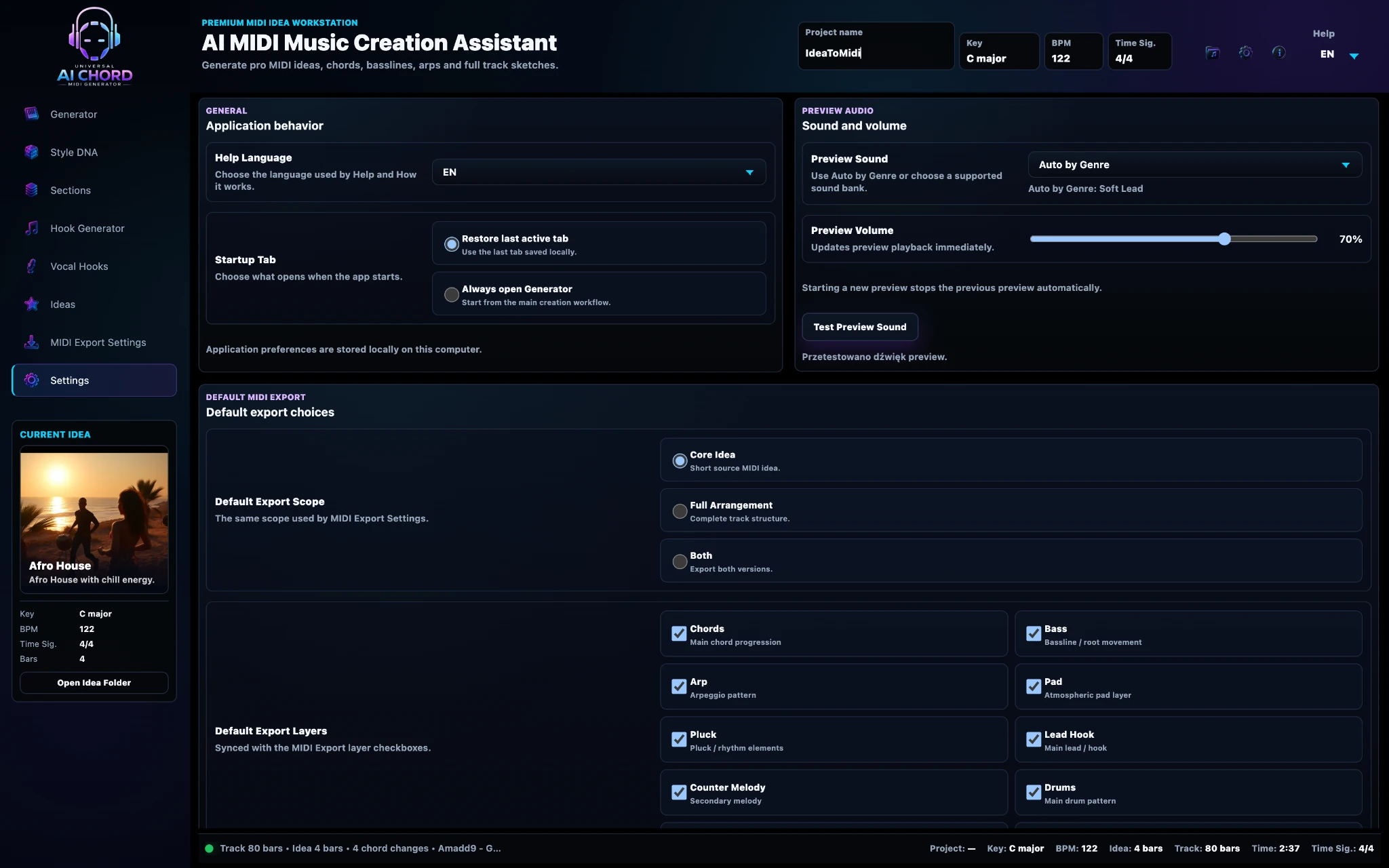
08 · SETTINGSSettings
What you seeApplication behaviour, preview sound and volume, plus default MIDI export scope and layers.
What you can doSet preferences once so the creative and export workflow opens with the choices you use most often.
INSIDE THE APP FAQ
What users need to know
Do I need to use every panel?
No. Each workspace has a focused purpose, and you can use only the screens needed for the current task.
Are the screenshots from the real product?
Yes. The page uses current application screens rather than generic concept art.
Can I return to an earlier step?
Yes. You can revisit settings and regenerate selected elements while keeping the rest of the project.
Does the app replace my DAW?
No! The app uses AI to help you find and organise editable MIDI ideas; it does not replace the producer or the DAW. You choose the sounds and complete the final arrangement, recording, production, mixing and mastering.
See the capabilities or follow the complete process.
Now that you know what is on each screen, explore what the tools can produce or see the order in which they are used.